Private AI Assistant
Table of Contents
Ever wanted to have your own AI assistant accessible through WhatsApp, running entirely on your own hardware?

This project demonstrates how to build a complete AI chatbot system using a Raspberry Pi 5, Google’s Gemma-2-2b language model, and WhatsApp integration - all self-hosted and private.
GÖD’S GATE
Run it yourself?
If you want to run it yourself, clone this GitHub repo and follow the setup.
Donations?
You can also toss me a coin: Paypal
System Architecture
High-Level Overview
┌─────────────────┐                   ┌────────────────────────────────────────┐
│                 │                   │    **Raspberry Pi 5 (Your Server)**    │
│   You via       │    Messages       │                                        │
│   WhatsApp      │  ────────────→    │   WhatsApp Bridge → FastAPI → Ollama   │
│   (Phone)       │                   │                                        │
│                 │   AI Response     │   AI processes your question locally   │
│                 │  ←────────────    │   (No data sent to external services)  │
└─────────────────┘                   └────────────────────────────────────────┘
Detailed Component Flow
═══════════════════════════════════════════════════════════════════
                        YOUR SMARTPHONE
═══════════════════════════════════════════════════════════════════

   WhatsApp Personal  ←──messages──→  WhatsApp Business
         App                                App
                                            │
                                            │
                              Internet (WhatsApp Servers)
                                            │
                                            ▼

═══════════════════════════════════════════════════════════════════
                 RASPBERRY PI 5 (192.168.x.x)
═══════════════════════════════════════════════════════════════════

  ┌────────────────────────────────────────────────────────────┐
  │        DOCKER CONTAINER: whatsapp-bridge                   │
  │                                                            │
  │    Express.js  ←──→  Chromium Browser  ←──→  whatsapp-     │
  │   (Port 3000)        (Headless Mode)         web.js        │
  │                                                            │
  └─────────────────────────┬──────────────────────────────────┘
                            │
                   HTTP POST /chat
                   (JSON message)
                            │
                            ▼
  ┌────────────────────────────────────────────────────────────┐
  │        DOCKER CONTAINER: ollama-gemma                      │
  │                                                            │
  │    FastAPI  ←──→  Ollama  ←──→  Gemma-2-2b AI Model        │
  │  (Port 8000)   (Port 11434)     (Loaded in RAM ~1.6GB)     │
  │                                                            │
  └────────────────────────────────────────────────────────────┘

  ┌────────────────────────────────────────────────────────────┐
  │        DOCKER VOLUMES (Persistent Storage)                 │
  │                                                            │
  │  • ollama-data: Stores AI model                            │
  │  • whatsapp-data: Stores WhatsApp session                  │
  └────────────────────────────────────────────────────────────┘

═══════════════════════════════════════════════════════════════════
How the Components Communicate
1. You → WhatsApp → Raspberry Pi
When you send a message from your personal WhatsApp to the bot’s WhatsApp Business number:
- Your message goes through WhatsApp’s servers (encrypted end-to-end)
- The message reaches the bot’s WhatsApp Business account
- Because the Raspberry Pi is “linked” to that account (like WhatsApp Web), it receives the message
2. WhatsApp Bridge Processes the Message
Inside the whatsapp-bridge container:
- Chromium browser runs in headless mode (no UI), mimicking WhatsApp Web
- whatsapp-web.js library controls Chromium and monitors for new messages
- When a message arrives, the JavaScript code extracts the text
- It makes an HTTP POST request to
http://ollama:8000/chatwith your message
3. FastAPI Routes the Request to Ollama
Inside the ollama-gemma container:
- FastAPI receives the HTTP request on port 8000
- It validates the request and forwards it to Ollama on port 11434
- Ollama loads the Gemma-2-2b model into RAM (if not already loaded)
- The model processes your question and generates a response
- The response travels back: Ollama → FastAPI → HTTP response
4. Response Returns to You
The WhatsApp bridge:
- Receives the AI’s response via HTTP
- Uses whatsapp-web.js to send the message through Chromium
- The message goes through WhatsApp’s servers back to your phone
Total time: 5-30 seconds depending on question complexity and whether the model is already loaded.
Security & Authorization
This implementation includes strict access controls to ensure only you can use the bot:
- Phone Number Authorization: The bot only responds to messages from YOUR specific WhatsApp phone number (unique identifier, not name-based)
- Dual ID System: Uses both your regular phone number (
@c.us) for direct chats AND your internal WhatsApp ID (@lid) for group chats - Group Chat Protection: In group chats, the bot requires a trigger word (“Prometheus”) to prevent accidental responses
- Private Mode: In direct one-on-one chats with you, the bot responds to all messages
How it works:
Direct message from you: "What is 2+2?" → AI responds
Direct message from anyone else: → AI ignores

Group message from you: "Prometheus what is 2+2?" → AI responds
Group message from you: "What is 2+2?" → AI ignores (no trigger word)
Group message from anyone else: → AI ignores (not authorized user)
Why Two IDs?
WhatsApp uses different identifier formats depending on the context:
- Direct chats: Your phone number in format
49598658532@c.us - Group chats: An internal WhatsApp ID like
95698765432109@lid
Both IDs represent YOU - WhatsApp just uses different formats. The bot checks both to ensure it recognizes you in all situations.
How Authorization Works:
The system checks two things for every message:
- Who sent it? - Compares the sender’s ID against your authorized IDs
- Where was it sent? - In groups, requires “Prometheus” trigger word
Process:
- Message arrives → Check sender ID → If not authorized → Ignore
- If authorized + in a group → Check for “Prometheus” → If missing → Ignore
- If all checks pass → Send to AI → Reply with response
⚠️ Critical Security Warning: If you use your personal WhatsApp account instead of a separate WhatsApp Business number, the AI will respond to ALL incoming messages as if it were you. WhatsApp/Meta won’t detect this automation. Always use a separate number for the bot.
Anti-Spam & Security Protections
To prevent malfunction and abuse, the system includes multiple protection layers:
Protection 1: Message Length Limits
Limit: 500 characters per message
Any message longer than 500 characters is truncated with ... [truncated] indicator. This prevents token overflow and memory exhaustion.
Protection 2: Rate Limiting
Limit: 2 seconds between requests
You must wait 2 seconds between AI requests. If you try too quickly, the bot responds:
⏱️ Please wait 1 seconds before sending another request.
This prevents accidental spam and protects the Pi from being overwhelmed.
Protection 3: Group Limits
Limit: 50 groups maximum
The system tracks context for a maximum of 50 groups. If you’re in 51 groups:
- First 50 groups: Full context awareness
- 51st+ groups: Bot still responds to you, but without stored context
This is a memory protection feature - without this limit, being in hundreds of groups could exhaust the Pi’s RAM.
Protection 4: Context Window Management
The system is conservative with token usage:
| Setting | Value | Purpose |
|---|---|---|
| Messages stored | 15 per group | Local memory buffer |
| Messages sent to AI | 5 per request | Token efficiency |
| Message max length | 500 chars | ~150-200 tokens each |
| Total context | ~750-1,000 tokens | Safe buffer |
This ensures Gemma-2-2b (8K token limit) is never overwhelmed, even in the busiest groups.
Protection 5: Authorization Layers
The bot has multiple authorization checks:
- Phone number verification - Only messages from YOUR number
- Internal ID verification - Handles WhatsApp’s internal group IDs
- Trigger word - Groups require “Prometheus” prefix
- Message type filter - Ignores system messages, media, etc.
No one else can use your bot, even if they:
- Have your name
- Are in the same groups
- Know the trigger word (“Prometheus”)
- Try to impersonate you
The bot checks your actual WhatsApp ID, which cannot be spoofed.
Context-Aware Group Conversations
Prometheus can “listen” to WhatsApp group conversations and use that context when you ask questions.
How It Works
Example:
[In your Family group]
Alice: "I'm visiting next weekend"
Bob: "The weather will be perfect"
Charlie: "Should we go hiking?"

You: "Prometheus what are they planning?"

AI: "Alice is visiting next weekend. Bob mentioned good weather,
and Charlie suggested hiking. They're planning a hiking trip."
Memory System
What gets stored:
- Last 15 messages per group (human + AI responses)
- Stored in RAM only (cleared on restart)
- Each group has isolated memory (no mixing)
What the AI sees:
- Recent group messages (up to 10)
- Its own previous responses (for continuity)
- Your current question
- Ignores your trigger words (“Prometheus X”)
Key features:
- ✅ AI remembers its own previous answers
- ✅ Can handle questions in multiple groups simultaneously
- ✅ Each group’s context stays separate (Family ≠ Work)
- ✅ Prioritizes your direct question over context
- ❌ Context lost after container restart
Protection limits:
- 15 messages stored per group max
- 10 messages sent to AI per request
- 500 characters per message max
- 50 groups tracked maximum
Technical Deep Dive: How Does Each Piece Work?
Ollama: The AI Engine
What is Ollama and why do we need it?
Ollama is an open-source project that makes running large language models locally simple and efficient. Think of it as a specialized server specifically designed for AI models.
Created by: Jeffrey Morgan and the Ollama team (2023)
Why we use Ollama instead of running the model directly:
- Model Management: Ollama handles downloading, storing, and loading AI models
- Memory Optimization: It manages how much RAM the model uses
- API Interface: Provides a REST API (port 11434) so other programs can talk to it
- Multi-Model Support: Can run different models without code changes
- Efficient Inference: Optimized for fast responses on limited hardware
What happens when you send a message:
Your question → Ollama API (port 11434) → Loads Gemma-2-2b into RAM →
Processes prompt → Generates response → Returns text
Ollama keeps the model “warm” in memory for a few minutes after use, making subsequent questions much faster.
FastAPI: The Middleware Layer
What is FastAPI and why is it between WhatsApp and Ollama?
FastAPI is a modern Python web framework created by Sebastián Ramírez in 2018. It’s known for being fast, easy to use, and having automatic API documentation.
Why we need this “middleware” layer:
- Standardized API: FastAPI creates a clean, consistent API that’s easier to work with than Ollama’s raw API
- Request Validation: Checks that incoming requests have the right format
- Error Handling: Catches errors from Ollama and returns friendly error messages
- Future Extensibility: Easy to add features like conversation history, logging, or multiple AI models
- Health Checks: Provides
/healthendpoint to monitor if services are running
The flow through FastAPI:
# 1. WhatsApp bridge sends HTTP POST to FastAPI
POST http://ollama:8000/chat
{ "message": "What is 2+2?", "temperature": 0.7 }

# 2. FastAPI validates the request
@app.post("/chat")
async def chat(request: ChatRequest):
    # Pydantic checks the request format

# 3. FastAPI forwards to Ollama
response = await client.post(f"{OLLAMA_URL}/api/generate", json=ollama_request)

# 4. FastAPI returns the response
return ChatResponse(response=result["response"])
Why not connect WhatsApp directly to Ollama?
- Ollama’s API is lower-level and requires specific formatting
- FastAPI abstracts away complexity
- Easier to switch AI backends later (could swap Ollama for OpenAI, Anthropic, etc.)
Puppeteer: The Browser Puppet Master
What is Puppeteer?
Puppeteer is a Node.js library developed and maintained by Google’s Chrome DevTools team. Released in 2017, it provides a high-level API to control Chrome or Chromium browsers.
How Puppeteer controls Chromium:
Puppeteer communicates with Chromium using the Chrome DevTools Protocol (CDP):
Puppeteer (Node.js)
    ↓ (sends commands via CDP)
Chromium Browser (headless)
    ↓ (executes commands)
Loads web.whatsapp.com
    ↓ (reports back)
Puppeteer receives page content, events, etc.
What Puppeteer can do:
- Launch browser instances
- Navigate to URLs
- Click buttons, fill forms
- Take screenshots
- Execute JavaScript in the page context
- Intercept network requests
- Listen for page events (new messages, notifications)
In our project, Puppeteer:
- Launches Chromium in headless mode (no GUI)
- Navigates to
web.whatsapp.com - Displays QR code for scanning
- Maintains session after authentication
whatsapp-web.js: The High-Level Abstraction
What is whatsapp-web.js?
whatsapp-web.js is an open-source library created by Pedro S. Lopez and maintained by the community. It’s built on top of Puppeteer specifically for WhatsApp Web automation.
Why we need it (instead of using Puppeteer directly):
Automating WhatsApp Web with raw Puppeteer would require:
- Finding and clicking specific buttons
- Parsing complex HTML structures
- Handling WhatsApp’s frequent UI changes
- Managing WebSocket connections
- Decoding encrypted message formats
whatsapp-web.js handles all of this for you:
Without whatsapp-web.js (raw Puppeteer):
- Must find specific HTML elements by their class names/IDs
- Code breaks every time WhatsApp updates their interface
- Requires constant maintenance
With whatsapp-web.js:
- Simple commands like
sendMessage(),reply() - Resilient to WhatsApp UI changes
- Maintained by the community
Key features whatsapp-web.js provides:
- Event System: Listen for
message,qr,ready,disconnectedevents - Message Objects: Structured data instead of raw HTML parsing
- Media Handling: Send/receive images, videos, documents
- Group Management: Create groups, add participants
- Contact Management: Get contact info, profile pictures
- Session Persistence: Save/restore authentication
In our implementation:
- Listens for incoming WhatsApp messages
- Extracts sender and message text
- Sends text to AI for processing
- Replies with AI response
- Persists session data so you don’t need to re-scan QR code
The “Bridge” Concept: Why That Name?
The term “bridge” in software refers to a component that connects two different systems that don’t naturally speak the same language.
In our case, the WhatsApp Bridge connects:
WhatsApp Ecosystem                    AI Ecosystem
(web.whatsapp.com)                   (Ollama + Gemma)
        ↕                                   ↕
    Chromium                           FastAPI
        ↕                                   ↕
   whatsapp-web.js  ←→ [BRIDGE] ←→  HTTP Requests
What the bridge does:
Protocol Translation:
- Input: WhatsApp messages (from Chromium via Puppeteer)
- Output: HTTP POST requests with JSON
Format Conversion:
- WhatsApp message → HTTP request to AI server
- AI response → WhatsApp reply
- Handles data formatting automatically
Bidirectional Communication:
- Inbound: Receives WhatsApp messages → Sends to AI
- Outbound: Receives AI responses → Sends to WhatsApp
State Management:
- Maintains WhatsApp connection
- Handles reconnections
- Manages typing indicators
- Tracks message status
Why it’s a separate service:
- Independence: WhatsApp and AI can be updated separately
- Scalability: Could add more bridges (Telegram, Discord) without touching AI layer
- Reliability: If the bridge crashes, AI keeps running
- Clean Architecture: Each component has one responsibility
The Bridge Architecture:
The bridge runs two services simultaneously:
- Express.js server (port 3000) - Provides health checks and QR code access
- WhatsApp client - Listens for messages, sends to AI, returns responses
What is Express.js and Why Do We Need It?
Express.js is a lightweight web framework for Node.js that makes it easy to create HTTP servers and APIs. In our WhatsApp Bridge, Express.js serves a crucial but often overlooked role.
The Role of Express.js in the Bridge
While whatsapp-web.js handles WhatsApp messaging, Express.js runs a separate web server alongside it in the same container. Think of it as the bridge having two jobs:
┌─────────────────────────────────────┐
│   WhatsApp Bridge Container         │
│                                     │
│  ┌───────────────────────────────┐  │
│  │  Express.js Web Server        │  │
│  │  (Port 3000)                  │  │
│  │  • /health endpoint           │  │
│  │  • /qr endpoint               │  │
│  └───────────────────────────────┘  │
│                ↕                     │
│  ┌───────────────────────────────┐  │
│  │  WhatsApp Client              │  │
│  │  (whatsapp-web.js)            │  │
│  │  • Send/receive messages      │  │
│  │  • Process conversations      │  │
│  └───────────────────────────────┘  │
└─────────────────────────────────────┘
What Express.js Actually Does
1. Health Check Endpoint (/health)
Allows monitoring tools to check if the service is running.
Example output:
Status: running
WhatsApp ready: true
Timestamp: 2025-11-08T10:30:00.000Z
2. QR Code Endpoint (/qr)
Serves the WhatsApp QR code in your web browser (via SSH tunnel). (However, I get the QR code from the container logs)
3. Admin Interface (optional)
Could serve a web dashboard for monitoring and control.
Why Not Just Use whatsapp-web.js Alone?
Without Express.js:
❌ No way to check if service is healthy
❌ No HTTP endpoints for monitoring
❌ Can only interact via terminal logs
With Express.js:
✅ Health checks for Docker
✅ Potential for future web dashboards
✅ Easier debugging and monitoring
Express.js vs FastAPI
You might wonder: “Why do we have TWO web frameworks (Express + FastAPI)?”
| Framework | Container | Language | Purpose |
|---|---|---|---|
| FastAPI | ollama | Python | Wraps Ollama API, handles AI requests |
| Express.js | whatsapp | Node.js | Serves QR codes, health checks, utilities |
They serve different purposes:
- FastAPI = AI interface (handles AI chat requests)
- Express.js = WhatsApp utilities (QR codes, monitoring)
Why not use one for both?
- Python (FastAPI) has great ML/AI libraries → Perfect for Ollama
- Node.js (Express) has best WhatsApp libraries → Perfect for WhatsApp Bridge
- Each service uses the best tool for its job
The Complete Request Flow
User sends WhatsApp message:
WhatsApp → Chromium → whatsapp-web.js → (processes in Node.js)
                                            ↓
                                    axios.post() to FastAPI
                                            ↓
                                    http://ollama:8000/chat
                                            ↓
                                    FastAPI receives request
                                            ↓
                                    Calls Ollama
                                            ↓
                                    Returns response to Node.js
                                            ↓
                                    message.reply() via whatsapp-web.js
Admin checks QR code:
- Browser → SSH Tunnel → Express endpoint → QR code displayed
Docker checks health:
- Docker → Express endpoint → Status returned
Key insight: Express.js is the “administration layer” for the WhatsApp bridge, while the actual messaging happens through whatsapp-web.js. Both services run simultaneously in the same container.
How Chromium Runs Without a Display (Headless Mode)
The challenge: Browsers are designed to show graphics, but Docker containers have no display.
The solution: Headless mode
Puppeteer launches Chromium in “headless” mode - running without a visible window.
What happens:
- Chromium launches without creating windows
- Renders pages internally (using virtual frame buffer)
- JavaScript still executes normally
- WhatsApp Web loads and functions as if in a real browser
- Puppeteer can still screenshot, interact, extract data
Why it works for WhatsApp Web:
- WhatsApp Web is a JavaScript application
- It doesn’t require user interaction after QR scan
- All communication happens via WebSockets (no visual needed)
- The bridge acts as the “user” through Puppeteer commands
Communication Between Docker Containers
How do two separate containers talk to each other?
Docker creates a virtual network called chatbot-network. Both containers are on this network with their own hostnames:
ollama→ Points to the ollama-gemma container (IP assigned by Docker)whatsapp→ Points to the whatsapp-bridge container
Docker’s DNS resolution:
When the WhatsApp bridge needs to contact the AI service, it uses the name ollama instead of an IP address. Docker’s internal DNS automatically resolves ollama to the correct container IP (e.g., 172.18.0.2).
Why this works:
- Docker Compose creates the network in
docker-compose.yml - Each service gets its name as a hostname
- Internal DNS server maps names to container IPs
- Containers can communicate as if on the same local network
Network isolation:
Internet
    ↓ (only ports 3000, 8000; 11434 exposed)
Raspberry Pi (host machine)
    ↓ (Docker network: chatbot-network)
    ├─ ollama-gemma (172.18.0.2:8000, :11434)
    └─ whatsapp-bridge (172.18.0.3:3000)
       ↓ (internal HTTP calls)
    ollama-gemma responds
This is why the WhatsApp bridge can call http://ollama:8000/chat even though they’re separate containers!
Performance Expectations
Response Times
- First message after startup: 30-60 seconds (model loading)
- Subsequent messages: 5-30 seconds
- Simple questions: Faster (~5-10 seconds)
- Complex questions: Slower (~20-30 seconds)
Resource Usage
- RAM: ~3-4GB when model is loaded
- Disk: ~2GB for images and model
- CPU: High during generation, low when idle
- Power: ~5-10W (less than a light bulb)
Conclusion
You’ve now built a complete AI assistant system that:
- Runs entirely on your hardware
- Costs ~€90 for the Pi + €4 for eSIM
- Requires no monthly subscriptions
- Keeps your data private
- Can be customized and extended
The beauty of this system is its modularity - you can swap Gemma for other models, add new interfaces beyond WhatsApp, or integrate with other services, all while keeping the core architecture intact.
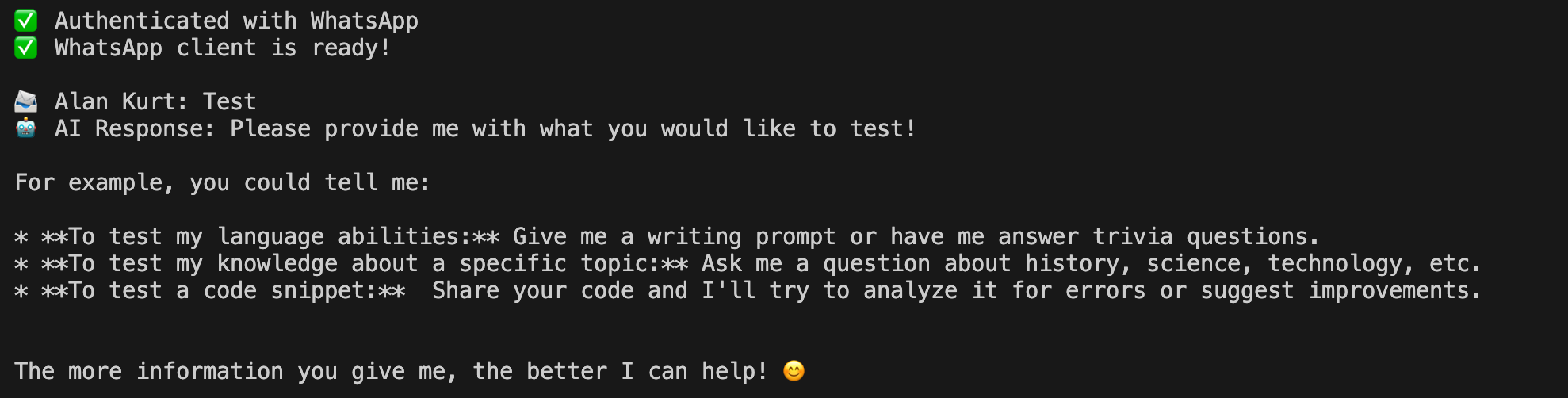 Example of a successful conversation with the AI bot
You now have your own personal AI, accessible from your pocket, running on a computer the size of a credit card. 🚀
Further Learning
To understand more deeply:
- Docker: Docker’s official tutorial
- FastAPI: FastAPI documentation
- Ollama: Ollama GitHub
- Puppeteer: Puppeteer documentation
- Raspberry Pi: Raspberry Pi Projects
Donations
Feeling generous? Toss a coin to your blogger so he codes some other random project: Paypal 😀
Complete Lexicon: Every Term Explained
Core Technologies
Docker
Software that packages applications into “containers” - isolated environments with everything needed to run the app. Like a shipping container that works the same way whether it’s on a truck, train, or ship.
Docker Container
A running instance of a Docker image. It’s isolated from the host system and other containers. Each container has its own filesystem, network, and processes.
Docker Image
A template used to create containers. Like a blueprint for a house - you can create many identical houses (containers) from one blueprint (image).
Docker Compose
A tool for defining and running multiple Docker containers together. You describe your entire application stack in a single YAML file.
Docker Volume
Persistent storage for Docker containers. When a container is deleted, volumes persist. This is where we store the AI model and WhatsApp session.
Multi-Architecture Build
Creating Docker images that work on different CPU types (ARM64 for Raspberry Pi, AMD64 for Intel/AMD computers). Like releasing a game for both PlayStation and Xbox.
AI Components
Gemma-2-2b
Google’s open-source language model with 2 billion parameters. The “2b” means it’s a smaller, more efficient version that can run on limited hardware like Raspberry Pi.
Ollama
An application that runs LLMs locally on your computer. It handles model loading, memory management, and provides an API for sending prompts and receiving responses. Think of it as a specialized AI engine.
Model Inference
The process of using a trained AI model to generate predictions or responses. This is the “thinking” phase when you ask the AI a question.
Temperature (AI Parameter)
Controls creativity/randomness in AI responses. 0.0 = deterministic and factual, 1.0 = creative and unpredictable. We use 0.7 as a balance.
Tokens
The basic units that LLMs process. One token ≈ 0.75 words. “max_tokens: 500” means the AI can respond with roughly 375 words.
Web Technologies
FastAPI
A modern Python web framework for building APIs. It’s fast, has automatic documentation, and uses type hints for validation. Think of it as the “translation layer” between web requests and the AI.
REST API
A way for programs to communicate over HTTP using standard methods (GET, POST, etc.). Our FastAPI provides endpoints like /chat that accept JSON and return JSON.
HTTP Request/Response
The fundamental way web services communicate. A request asks for something, a response provides it. Like asking a question (request) and getting an answer (response).
JSON (JavaScript Object Notation)
A text format for exchanging data between programs. Human-readable and language-independent. Example: {"message": "Hello", "temperature": 0.7}
Endpoint
A specific URL path in an API. Examples: /health, /chat, /models. Each endpoint does something different.
Port
A numbered channel for network communication. Like apartment numbers in a building - port 8000, port 3000, etc. Different services listen on different ports.
Node.js Ecosystem
Node.js
JavaScript runtime that lets you run JavaScript on servers (not just in browsers). Used for the WhatsApp bridge because of the excellent browser automation libraries.
Express.js
A lightweight web framework for Node.js used to create HTTP servers and APIs. In this project, Express.js runs inside the WhatsApp bridge container to provide:
/healthendpoint for Docker health checks/qrendpoint to serve WhatsApp QR codes via browser- Monitoring and administration layer for the bridge
See the detailed section “What is Express.js and Why Do We Need It?” for the complete explanation of its role.
npm (Node Package Manager)
The package manager for Node.js. Like an app store for JavaScript libraries. We use it to install whatsapp-web.js, Puppeteer, etc.
package.json
A file that lists all Node.js dependencies and scripts. Tells npm what to install.
Browser Automation
Chromium
The open-source browser project that Chrome is based on. Same core engine, but without Google’s proprietary code.
Headless Browser
A browser that runs without a graphical interface. Can still load web pages, run JavaScript, etc., but you don’t see windows or tabs.
Puppeteer
A Node.js library that controls Chromium programmatically. Can click buttons, type text, take screenshots, etc.
whatsapp-web.js
A library built on Puppeteer specifically for WhatsApp Web automation. Handles the complexity of connecting, sending messages, receiving messages, etc.
LocalAuth (Authentication Strategy)
A method of storing WhatsApp session data locally. Saves the encrypted session tokens so you don’t have to re-scan the QR code every time.
Networking Concepts
SSH (Secure Shell)
Encrypted protocol for remote access to computers. We use it to connect to the Raspberry Pi from our Mac.
SSH Tunnel
Forwards a port from a remote computer to your local computer through an encrypted SSH connection. Makes remote services appear local.
Localhost / 127.0.0.1
Special IP address that always refers to “this computer”. Used for services that should only be accessible locally.
Private Network / LAN
A network not accessible from the internet. Your home WiFi is a private network (192.168.x.x or 10.x.x.x addresses).
Docker Network
A virtual network created by Docker for containers to communicate. Containers can refer to each other by name (like http://ollama:8000).
Development Workflow
CI/CD (Continuous Integration/Continuous Deployment)
Automated pipeline for building and deploying software. We build on Mac → Push to Docker Hub → Watchtower auto-deploys to Pi.
Docker Hub
A registry for storing and sharing Docker images. Like GitHub but for Docker images. Free for public images.
Watchtower
A Docker container that monitors other containers and automatically updates them when new images are available. Enables hands-free updates.
buildx
Docker’s tool for building multi-architecture images. Can build for ARM64 and AMD64 simultaneously.
WhatsApp Concepts
WhatsApp Business
A separate WhatsApp app designed for businesses. Can coexist with regular WhatsApp on the same phone (using different numbers).
Linked Devices
Feature that allows WhatsApp to run on multiple devices simultaneously (Web, Desktop, etc.). Limited to 4 linked devices per account.
QR Code Authentication
The process of linking a device by scanning a QR code. Establishes an encrypted session between phone and device.
End-to-End Encryption (E2E)
Messages are encrypted on the sender’s device and only decrypted on the recipient’s device. Even WhatsApp’s servers can’t read the content.
eSIM
A digital SIM card built into modern phones. Can be activated instantly without a physical card. Perfect for getting a second number.
Disclaimer
Any views expressed in this post are solely those of the author and do not represent the opinions or policies of any affiliated organizations.